Getting Started

Get Started with Lumina
Lumina changes the colours Windows shows on your desktop. Start with one shared effect, then use individual display settings if your monitors need different treatments.
This guide takes you through first use and the controls you will use every day. The product video will be added here when it is ready.
Choose Your First Effect
-
Open Lumina. Its Options window appears on first use. Later launches can start quietly in the Windows notification area.
-
On Displays & Effects, select All Displays to apply one effect across your desktop.
-
Open the effect picker beneath the display layout and choose Smart Inversion. Try its variants if you prefer softer or stronger contrast.
-
Use the banner switch or the Turn On / Turn Off toolbar command to compare the effect with normal colours.
Your choices are applied and remembered as you make them. There is no Save or Apply step.
Give a Display Its Own Look
-
Select Per Display on Displays & Effects.
-
Click Identify to see which physical screen matches each numbered display in the layout.
-
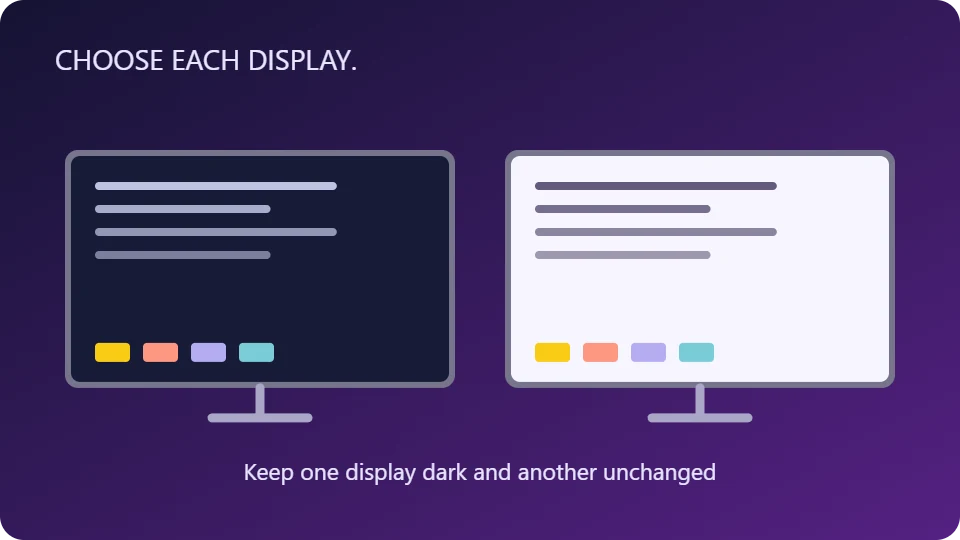
Choose an effect in the picker beneath the display you want to change. Choose None beneath a display that should remain unchanged.
-
Select a display in the layout and enable Own brightness and contrast if it needs its own adjustments.
For example, you can use Smart Inversion on your reading screen and None on a second screen. Returning a display to the global effect makes it follow later global effect changes.
Learn Two Shortcuts
Use the default shortcuts while another application has focus.
| Shortcut | Action |
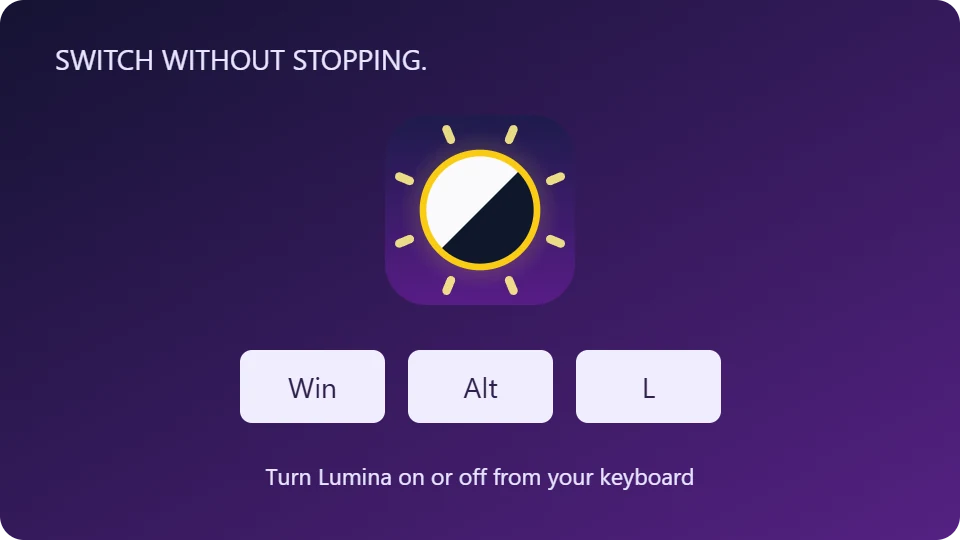
| Win+Alt+L | Turn Lumina on or off |
| Win+Alt+K | Select the next effect |
Open Shortcuts to change these combinations or assign a shortcut to one particular effect. Check the Status column if a combination is already used by another command or application.
Keep Lumina Ready
Close hides Options and leaves Lumina running. Click the tray icon to reopen Options, or right-click it for Turn On / Turn Off, Options and Exit.
On Behaviour, choose whether Lumina starts with Windows, whether effects are active on startup and whether clicking the tray icon toggles the effect. You can also enable on-screen labels and full-screen fades.
Return to Normal Colours
Turn Lumina off with Win+Alt+L, the banner switch or the tray menu. To stop the application completely, choose Exit from the tray menu. Closing Options alone does not turn the effect off.
If Something Looks Wrong
-
The wrong display changed — use Identify and check the selected display before adjusting it.
-
A display ignores the next-effect shortcut — it may have its own effect or be set to None. Global effect shortcuts preserve individual display choices.
-
Per-display effects feel less smooth — try All Displays for the simpler full-screen path, or review the refresh options on Behaviour.
-
A shortcut does nothing — check its Status on Shortcuts and select a combination Windows can register.
Getting Started · Product Manual · Back to Lumina